Onboarding 10 Vision Pros
Managing 10 Vision Pro headsets with Mosyle
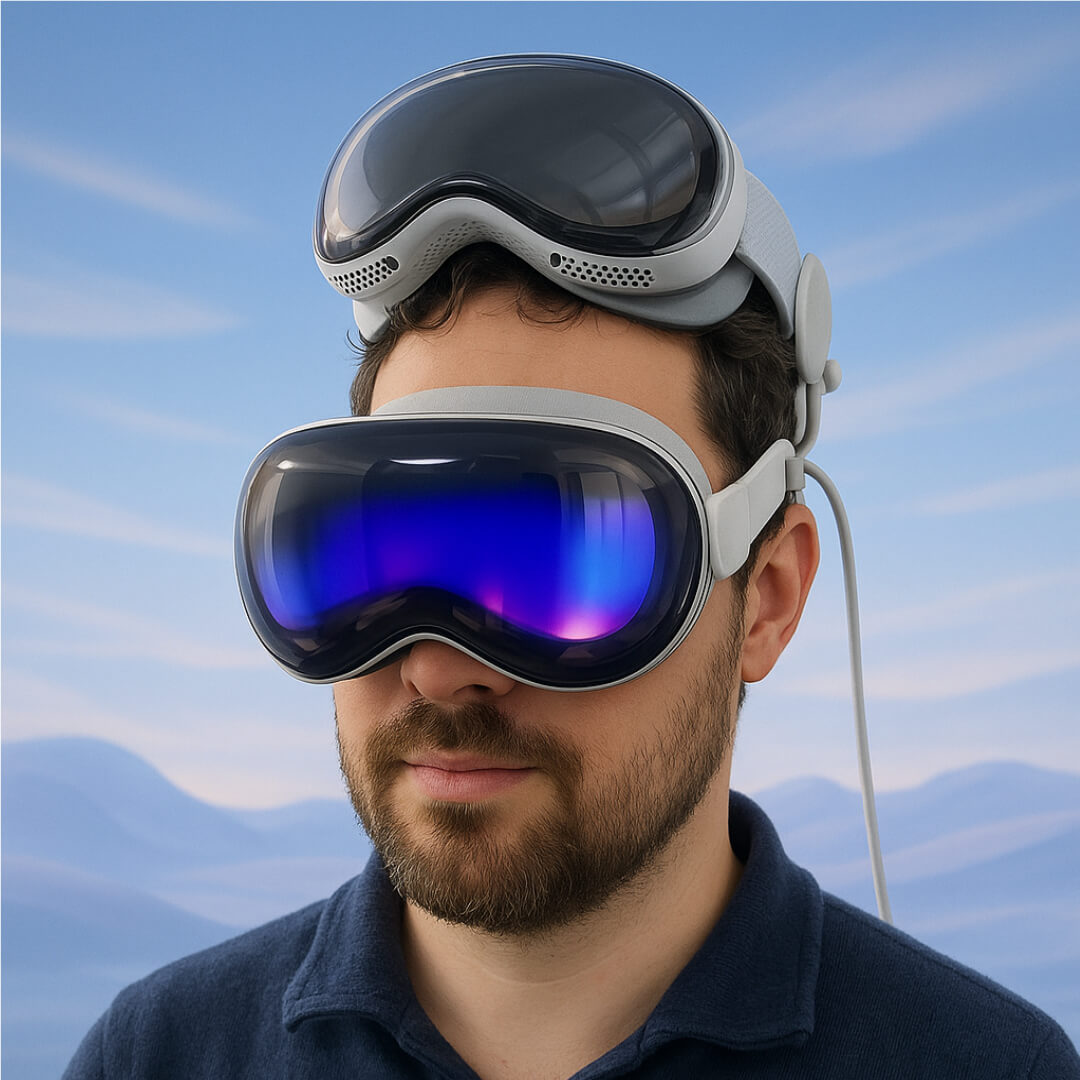
While the world is still debating the Vision Pro’s purpose and ideal use cases, there is a practical reality: it must be supported and integrated within business and enterprise environments.
I volunteered to take this on. We use Mosyle Business to manage over 100 macOS and 30+ iOS devices. Since visionOS 2.0 includes an option to onboard Vision Pro headsets, I assumed this would be a straightforward task…
The goal
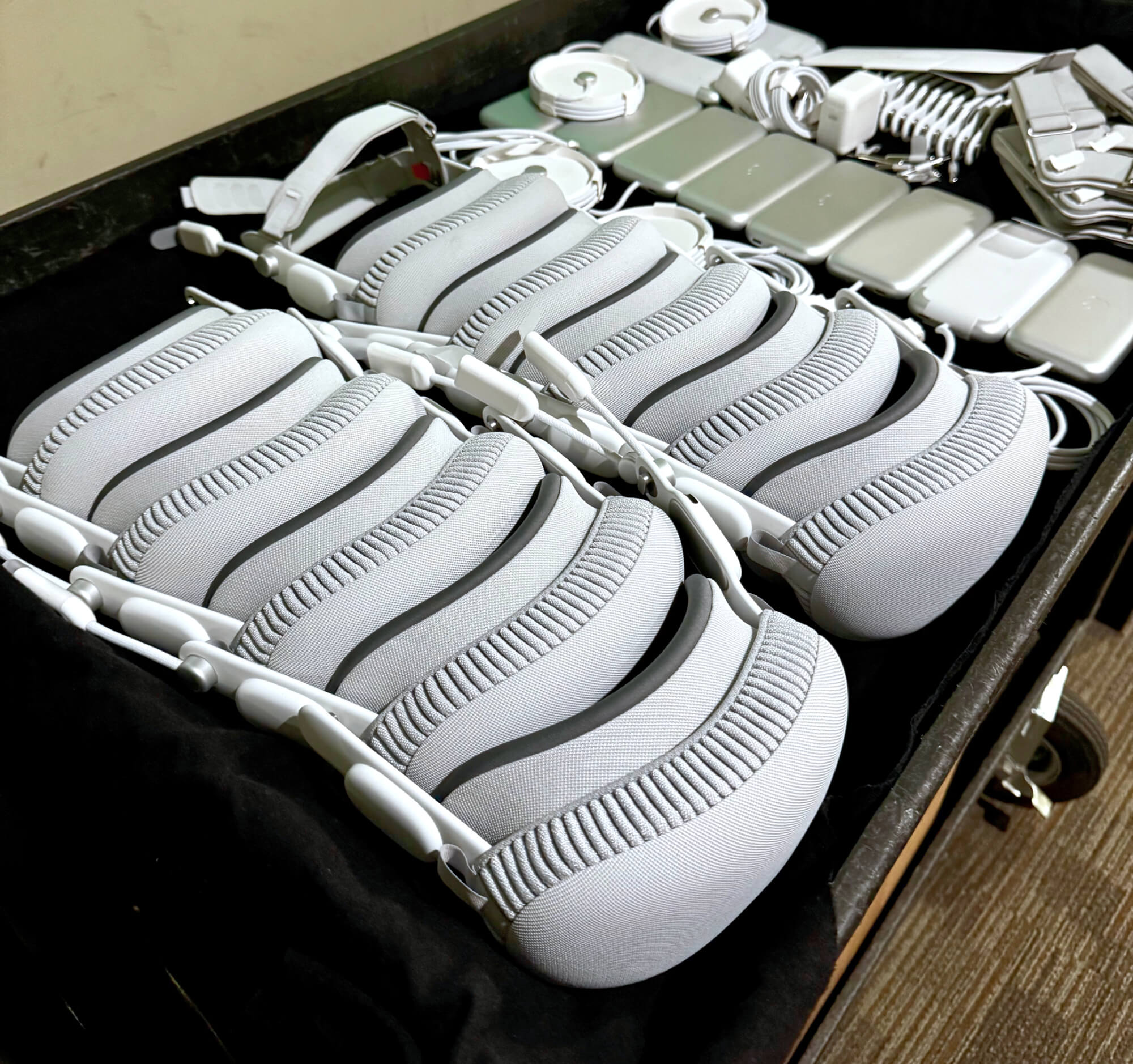
Starting in December AbelCine will host Immersive Classes using Vision Pro headsets. The goal is to ensure that all devices are properly configured with the required software and consistent, uniform settings across every headset.
Available options
Compared to more mature platforms like macOS, or iOS the management options are pretty limited. Setting up WiFi, provisioning apps, DNS and some network settings are available. But the granular permission settings, locking down preferences, forcing software updates, reorganizing Home Screen and some other features are missing.
How to onboard a Vision Pro?
You have 2 options:
- ADE (Automated Device Enrollment) - for this option, you purchase the devices from a vendor who supports it and your serial will be automatically added to your Apple Business Manager, where you can assign it to an MDM.
- Account Driven Device Enrollment - for this option, during the setup process someone uses a company managed Apple ID to log in and connects the device to Apple Business Manager
Based on my findings, visionOS 2 and above allows ABM, which was a bit of a pain in my case. The 10 devices were loaners and most of them were running visionOS 2, but it didn’t let me start the onboarding process. I had to update them first. Since there is no separate update option (like internet recovery on Mac), I had to go through the following process.
- Set up the device (no Apple ID, no Passcode), but go through the (unskippable) tutorial video, hands and eye tracking, the regular questions (like Sharing Analytics, etc)
- Connect to Wifi
- Go to the main menu and update the device to VisionOS 26.1
- Check if that was completed successfully
- Reset the device
- Logging in to the Apple Configurator app on my phone
- Start the headset and type in the 6-digit code on the phone (this should automatically show up if the phone is in Bluetooth range)
- Double press the Digital Crown to reset
- Wait until the Vision Pro shows up in Apple Business Manager and can be synced to Mosyle (or other MDM) - usually 5 minutes
- Set up the headset and make sure “Enroll Device” is selected
The last step still requires you to watch the tutorial video, complete hands and eye tracking, answer a few questions, and complete passcode and Wifi setup. You must set up a Passcode in order to enroll the device. …and repeat this whole process 9 times. I’ll need to wait for real-world experience, when people actually start using it and have requests. I can imagine that the lack of wired connection could make my life harder. In order to push changes, the headsets have to be connected to the network. If the temporary test network is not available, they might not be able to receive commands.
Personal experience
Super personal experience
This isn’t like a regular computer where you can just hand someone a keyboard and mouse and let them figure it out. I’ve run into several situations where users had to redo the hand and eye tracking before they could even get started. Trying to guide someone through that process without being able to see exactly what they’re seeing is tough. The controls feel intuitive to me now because I’ve used them a lot, but for someone new, there’s definitely a learning curve. It gets even more frustrating when the eye or hand tracking is off and I have to talk them through multiple menus just to get things working again.
Monitoring
When you’re demoing the Vision Pro and want to impress someone, what’s the first thing you show? Usually one of the sample videos. But after fighting through the obstacles of explaining how to reset the hand and eye tracking, the video finally starts—only for everything to appear black because of DRM. Then you have to explain how to turn off mirroring and navigate all the way back to the video again.
Productivity
For a brief moment, I tried to use the Vision Pro as a monitor. The ultra wide screen, blocking the distractions from the outside (both visual and audio) is pretty compelling. I can be easily distracted by people passing by or random noises. But having white noise and the backgrounds helps immensely with my focus and concentration. There is actually a background that simulates working on top of a mountain, and who doesn’t want that feeling of peace?
Final words
Even if the Vision Pro can increase productivity, the price is still hard to justify. If the goal is simply to block out your surroundings, a $250 pair of AirPods Pro offers far better value. As a personal entertainment device, though, the Vision Pro makes more sense — at home or on an airplane, watching sports like Formula 1. That’s where I can really see the appeal. As camera and display technology continue to evolve and we will get cheaper devices, the experience may feel less niche. Still, one thing won’t change: this is a personal device, not a shareable one. Its real value comes from how comfortably a single user can customize it—both hardware and software—to fit their own needs.